
How to Create a Payment Receipt
Record a payment in Wrapp and download the payment receipt as a PDF in three simple steps.
In Wrapp you can record a payment and download the payment receipt as a PDF in seconds. Here are the steps.
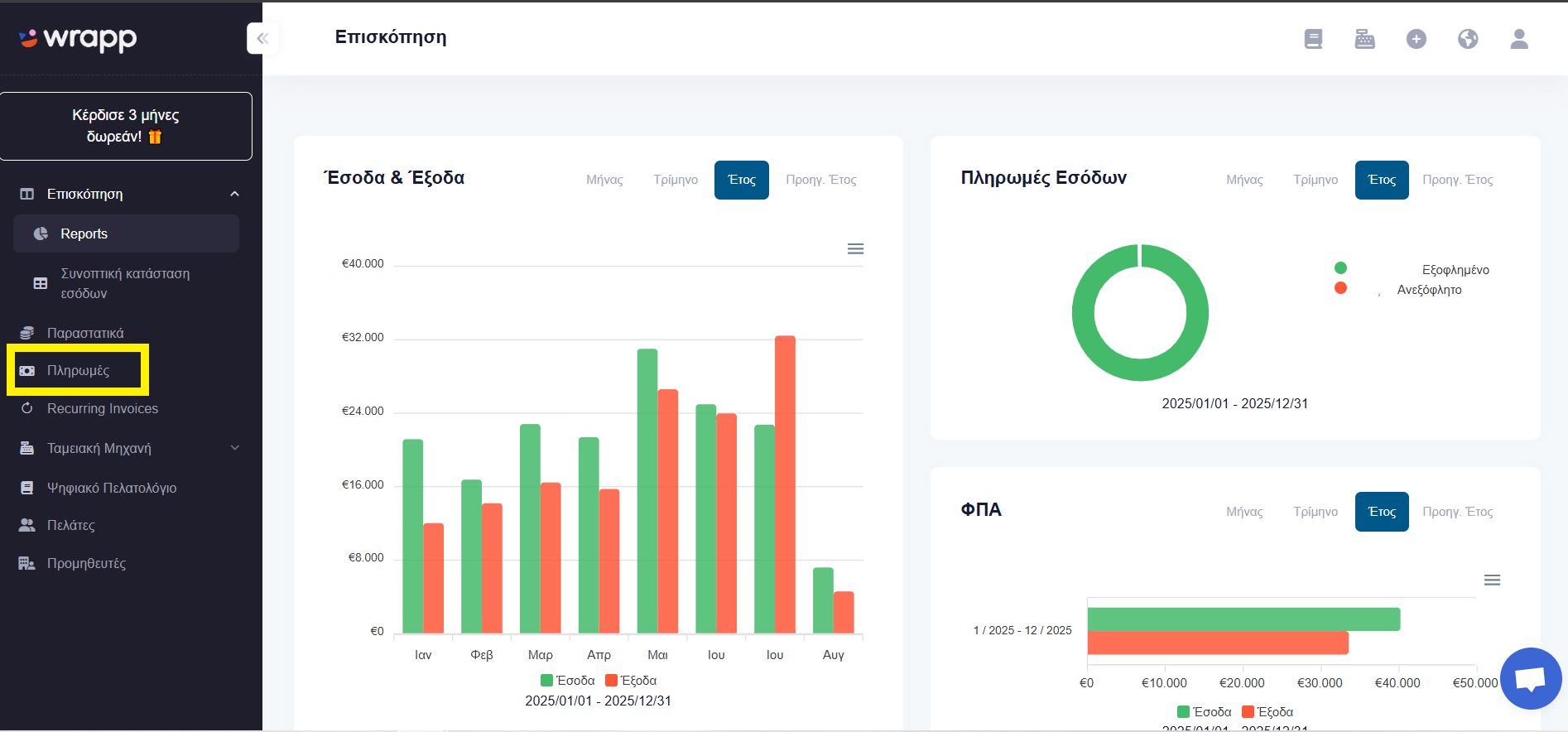
Step 1: Open the «Payments» menu
From the left side of your screen, go to the Payments menu.
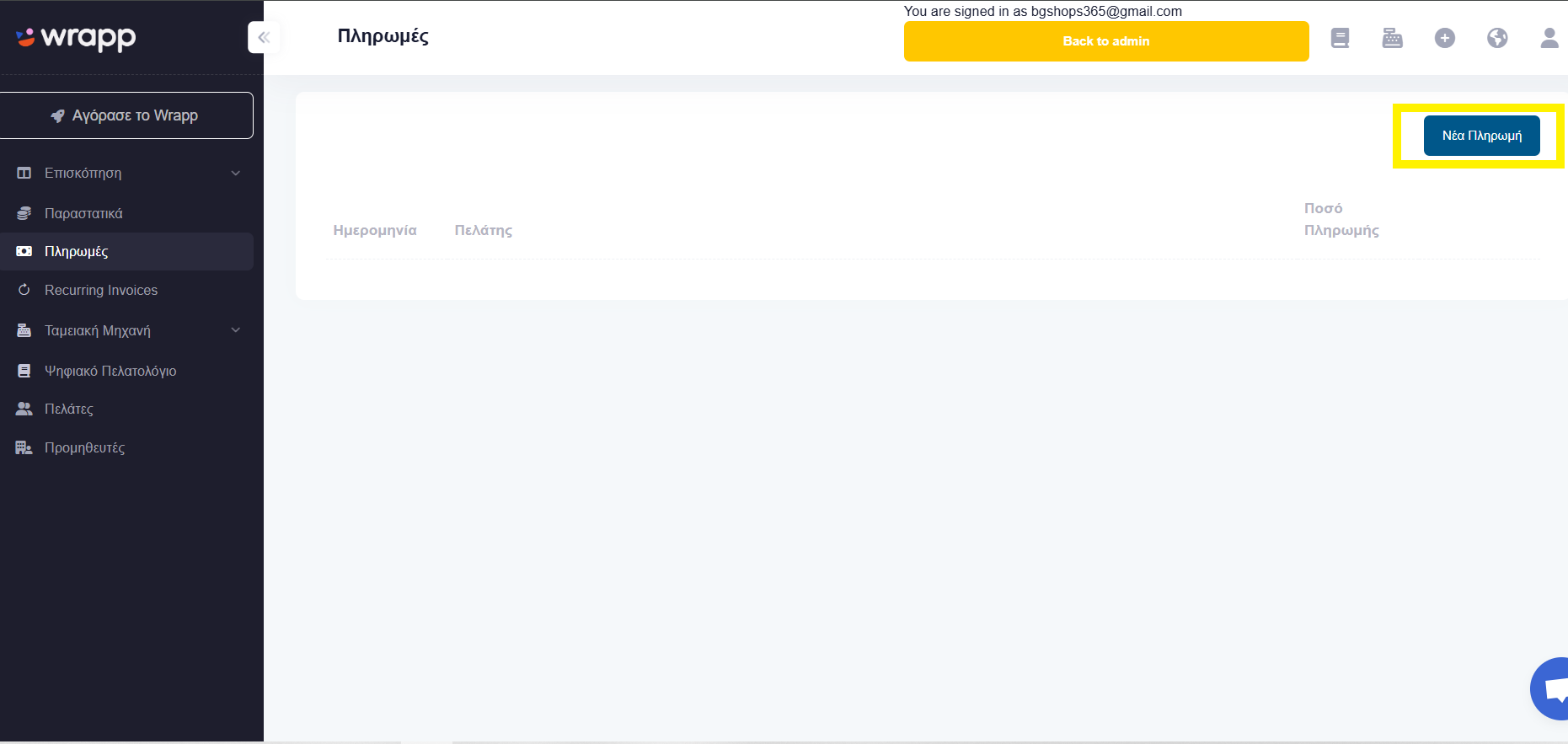
Step 2: Create a new payment
Select «New Payment».
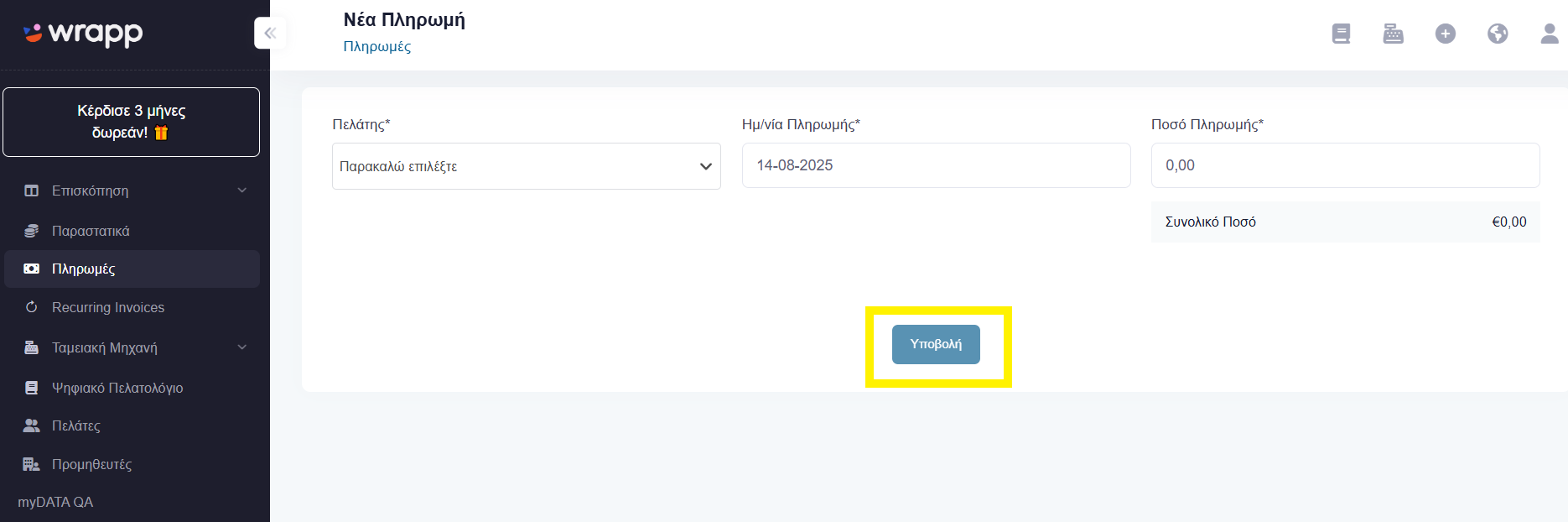
Fill in the required fields and click «Submit».
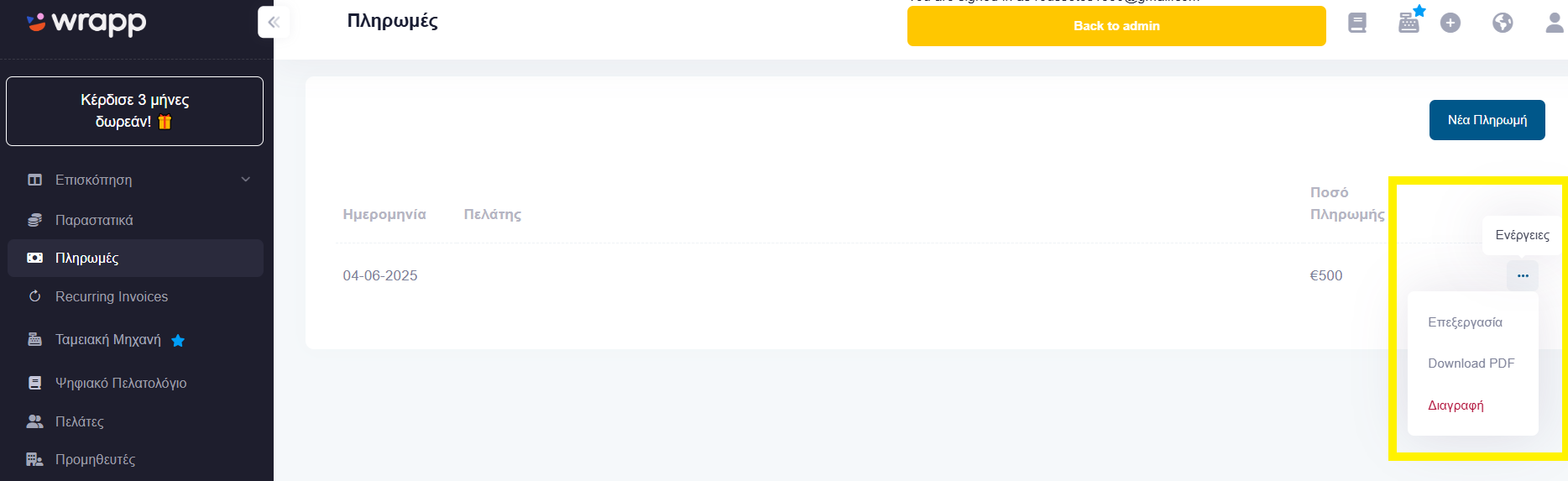
Step 3: Download the payment receipt as a PDF
Once the payment is recorded, it appears as a row in the list. At the right end of the row you will see the three-dot icon (Actions). Click it and select «Download PDF». That file is your payment receipt.
Frequently asked questions
How do I create a payment receipt in Wrapp?
Go to the Payments menu, select «New Payment», fill in the details and click «Submit». Then open the row's Actions menu and choose «Download PDF» to get the payment receipt.
Is a payment receipt a tax document?
No. A payment receipt documents that an amount was collected and does not replace an invoice or retail receipt. The tax document is issued separately and transmitted to myDATA, the Greek tax authority's e-invoicing platform.
Can I send the payment receipt to my customer?
Yes. Download the PDF from the payment's Actions menu and forward it to your customer any way you like, for example by email.
How is a payment linked to an invoice?
When recording the payment you select the document being paid off. That way you keep a single view of your collections inside Wrapp, an AADE-certified e-invoicing provider.
Need help?
If you have a question about this topic or want to make sure everything is set up correctly, contact us and we will look at it together.