
How to Use Filters to Find Specific Documents
Quickly find the documents you are looking for in Wrapp with filters by date, state, type, payment status and customer.
As your documents pile up, filters help you find exactly what you are looking for: by date, state, type, payment status or customer.
Step 1: Open the «Documents» menu
On the left side of the screen you will find the Documents menu.
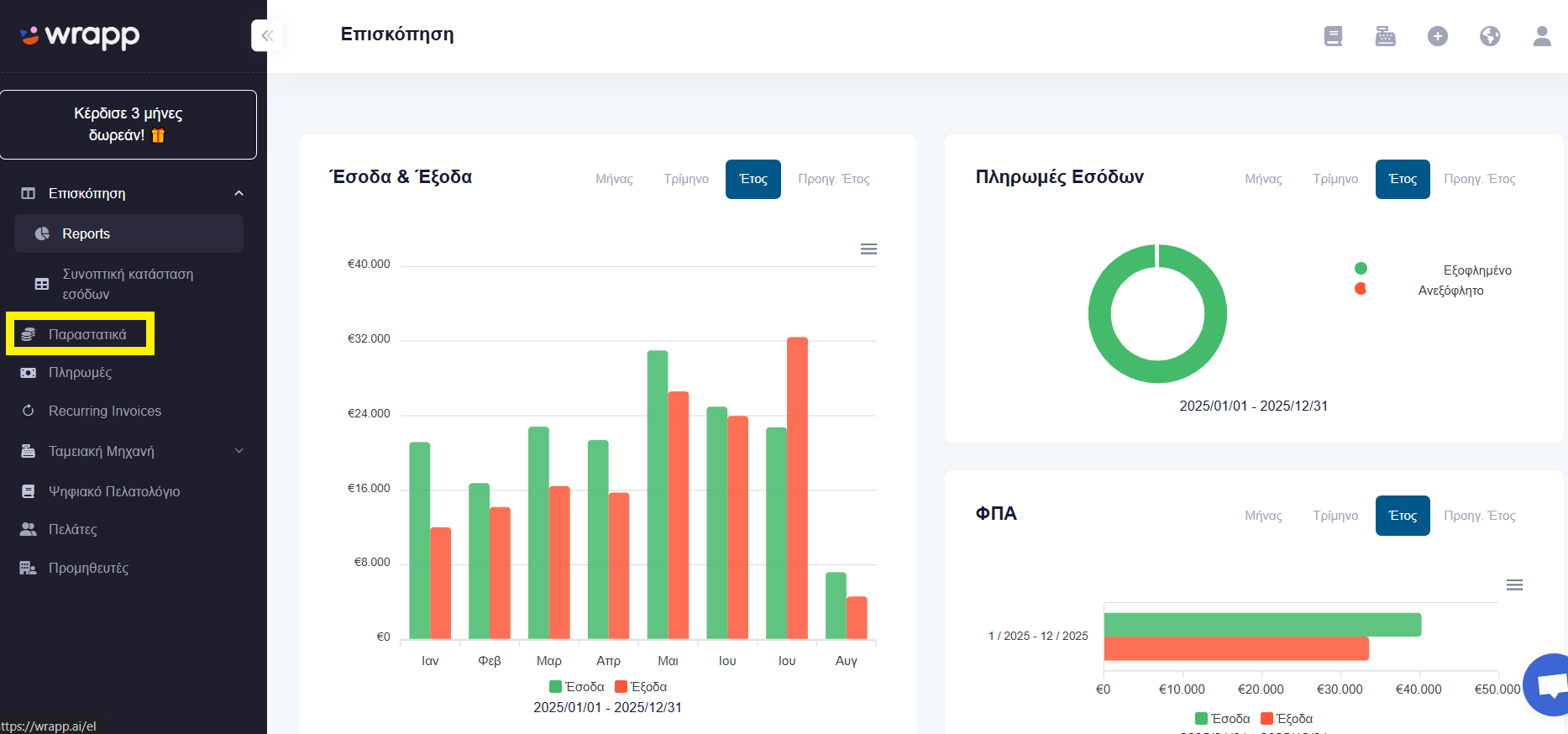
Step 2: Select «Filter»
There you will find the «Filter» option.
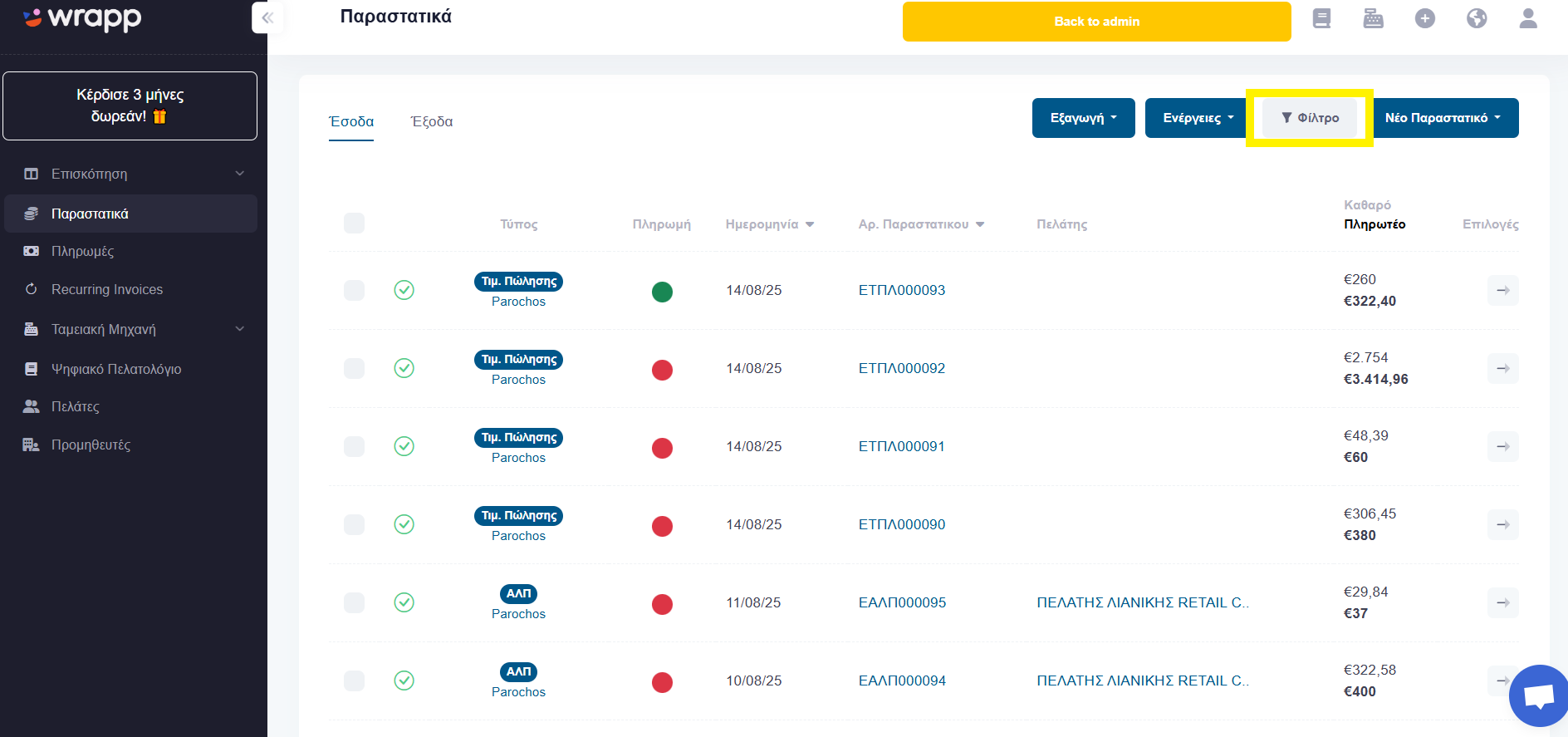
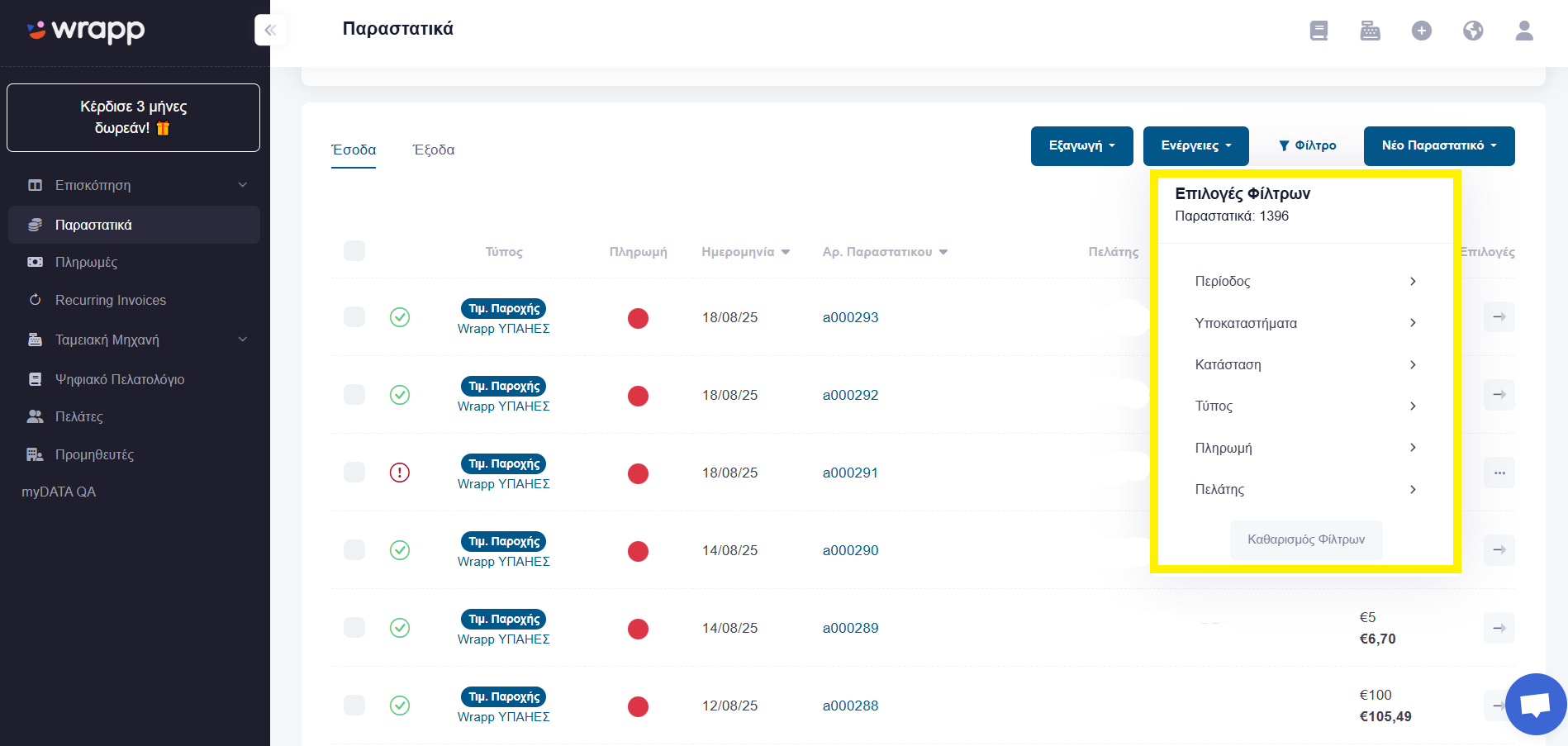
Step 3: Combine search criteria
The Filter lets you find documents by:
- the date they were issued
- their state (Draft and so on)
- their type (Credit invoice and so on)
- their payment status
- customer
You can run a combined search by selecting more than one filter at a time.
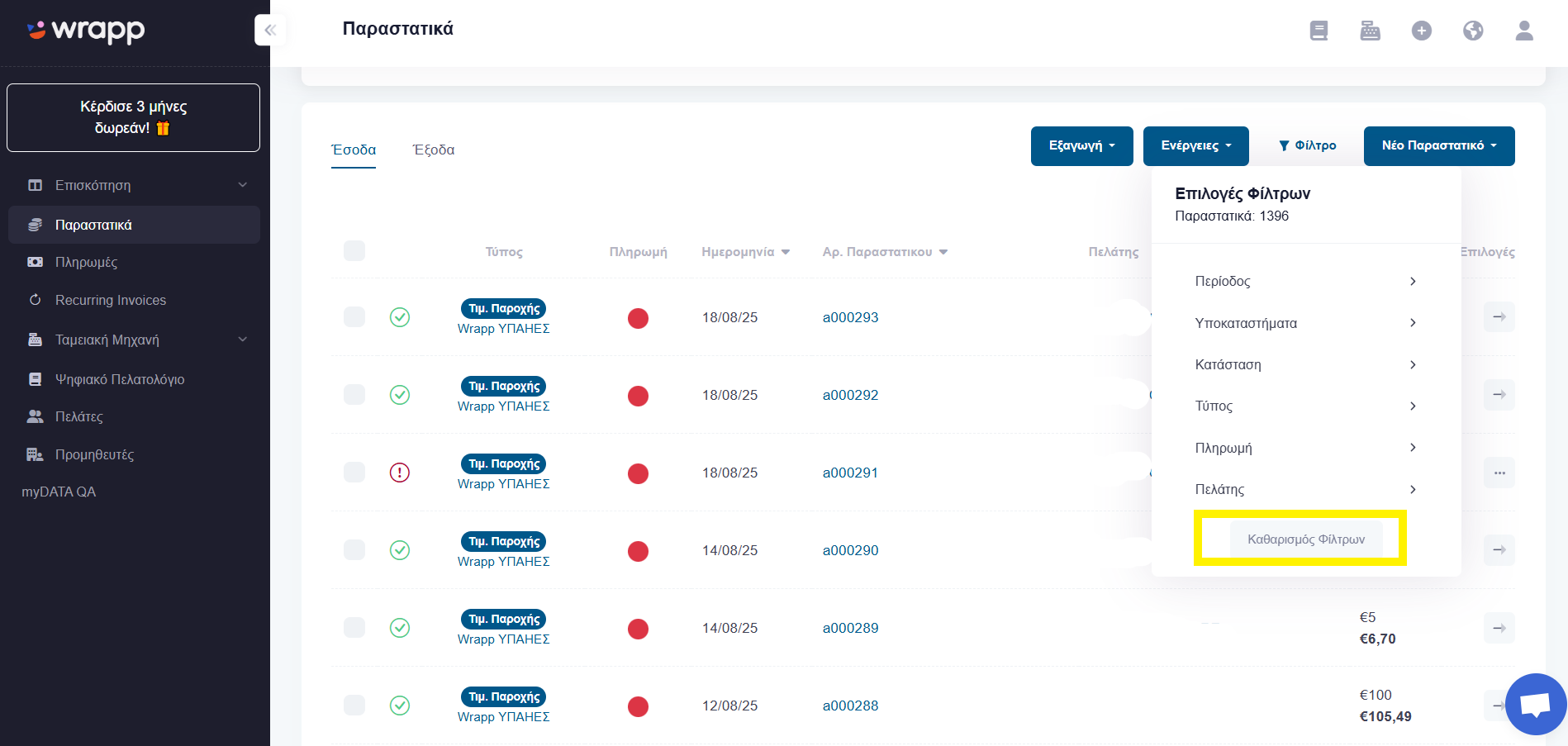
Step 4: Clear the filters
To switch the Filter off, click «Clear Filters».
Frequently asked questions
What criteria can I filter documents by in Wrapp?
By issue date, state (such as Draft), type (such as Credit invoice), payment status and customer. Criteria can be combined for a more targeted search.
How do I find all unpaid invoices for one customer?
Open the Filter in the Documents menu, pick the customer and set the payment status to unpaid. The list will show only the documents matching both criteria.
How do I reset the document list after filtering?
Click «Clear Filters» to switch off all active filters and see the full list again.
Do I need filters to check myDATA transmission?
Filters help you quickly spot, for example, drafts that have not been issued yet. Issued documents are transmitted to myDATA automatically, since Wrapp is an e-invoicing provider certified by AADE, the Greek tax authority.
Need help?
If you have a question about this topic or want to make sure everything is set up correctly, contact us and we will look at it together.