How to Connect a Viva softPOS to Wrapp
A step-by-step guide to finding your Merchant ID and Terminal ID in your Viva account and registering them in Wrapp to complete the POS integration.
 Viva
×
Viva
×

Connecting a Viva softPOS to Wrapp takes two parts: first you locate your Merchant ID and Terminal ID in your Viva account, then you register them in Wrapp's Integrations. Once linked, every charge on the POS starts from the invoice, as required by the POS interconnection rules of AADE, the Greek tax authority.
Part 1: Find your details in your Viva account
First, sign in to your Viva account.
1. From the main screen, go to Settings → API Access.

2. There you will see your Merchant ID. Keep it handy, you will need it in the steps below.

3. Next, from the main menu on the left side of your screen, go to Sales → Physical Payments → Terminals.
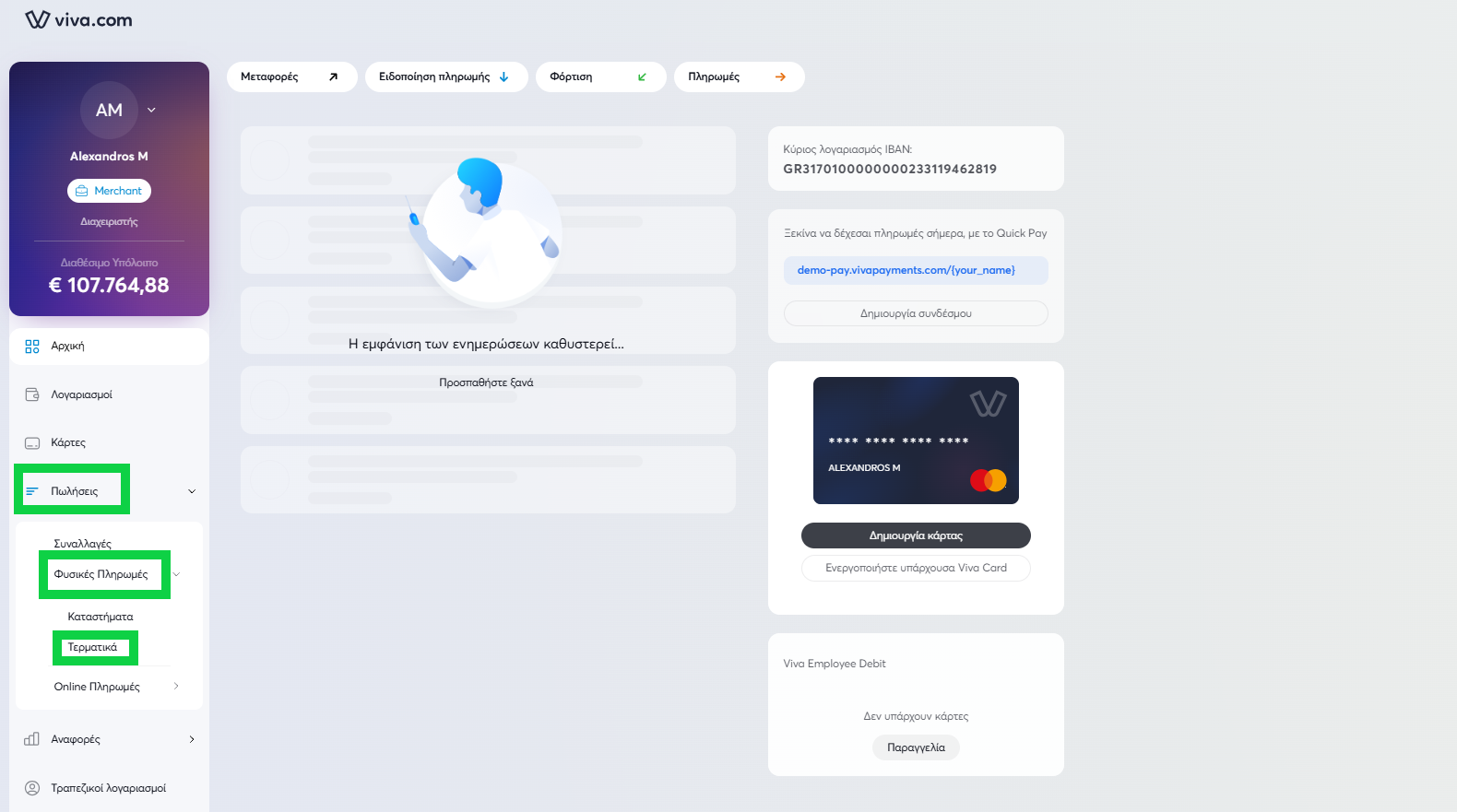
4. There, in the Terminal ID (TID) column, you will find your POS number. Keep this number as well for the next steps.

Part 2: Register the details in Wrapp
Next, sign in to Wrapp.
5. Go to Settings → Integrations → POS.

6. In the Merchant ID field, enter the number you kept from the Viva page.

7. Click the "+" button and add the POS. In the Terminal ID field, enter the number you kept from the Viva page. Finally, make sure the toggle is switched to "Active" as shown below.

8. Finish by selecting "Save Changes". Whenever you need to manage your connected POS terminals, you can return to this screen.
Frequently asked questions
Where do I find my Merchant ID in my Viva account?
Sign in to your Viva account and, from the main screen, go to Settings, API Access. Your Merchant ID is displayed there.
Where do I find the Terminal ID (TID) of my Viva POS?
From the main Viva menu, go to Sales, Physical Payments, Terminals. The Terminal ID (TID) column lists the number of each of your terminals.
Why do I need to connect my POS to my invoicing software?
POS interconnection is mandatory in Greece: AADE, the Greek tax authority, requires the amount charged on the terminal to come from an issued document. Wrapp, as an AADE-certified e-invoicing provider (YPAHES), covers this requirement automatically.
Can I connect more than one Viva POS to Wrapp?
Yes. On the Settings, Integrations, POS page, click the "+" button and add each terminal with its own Terminal ID under the same Merchant ID.
Need help?
If you have a question about this topic or want to make sure everything is set up correctly, contact us and we will look at it together.